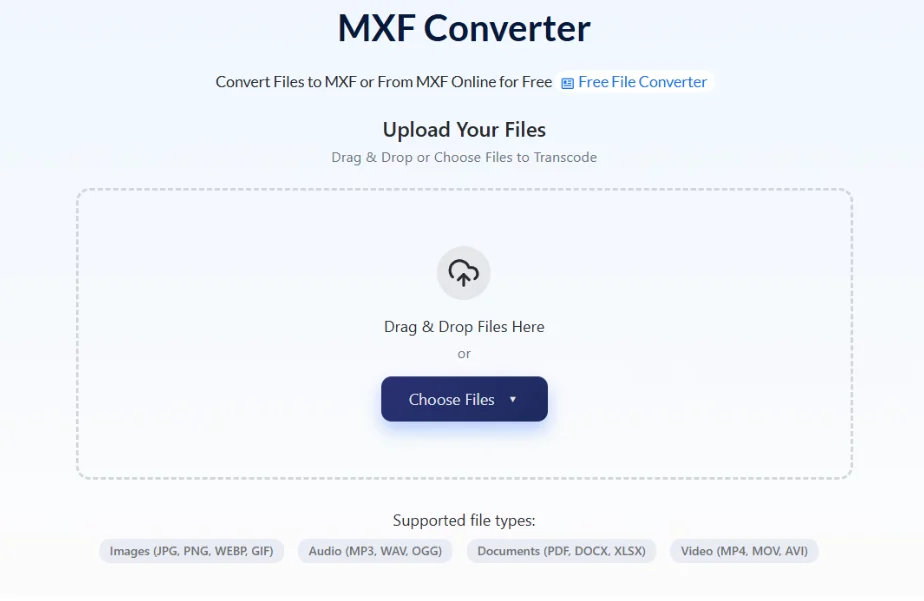
Your Sony XDCAM footage looks perfect on the camera monitor. Copy it to a laptop and suddenly nothing plays it — not your phone, not your client’s computer, not any social platform. That’s MXF doing exactly what it was designed to do: serve professional production systems, not consumer devices. The short answer is yes, you can absolutely convert MXF to MP4 — AhaConvert handles it free in your browser with no software required — but the settings you choose determine whether you preserve quality or destroy it.
What Is an MXF File (And Why Won’t It Just Open)?
MXF (Material eXchange Format) is a professional video container standardised by SMPTE as SMPTE 377M in 2004. It was built specifically to solve a broadcast industry crisis: media moving between Sony recording systems, Avid editing platforms, and BBC playout servers was routinely corrupted — timecode disappeared, audio channel mapping broke, metadata identifying scenes and takes was lost entirely.
MXF fixed that by creating one universal container every professional system could reliably read and write. Inside an MXF file:
- Video: XDCAM HD, AVC-Intra, DNxHD, ProRes, H.264, or uncompressed RAW
- Audio: Up to 32 channels — stereo mix, surround sound, commentary, foreign language dubs
- SMPTE timecode: Frame-accurate time references for editing synchronisation
- Metadata: Camera model, operator, GPS location, scene and take numbers
Why MXF files are large: A one-hour Sony XDCAM HD recording at 50Mbps runs 20–25GB. AVC-Intra at 100Mbps runs 40–50GB. Uncompressed 4K MXF can exceed 1TB per hour. Converting to MP4 reduces this to 3–8GB without visible quality loss at correct settings — which is the real answer to whether conversion is possible: yes, and the result is dramatically more usable.
Yes, But Can You Convert It Without Losing Quality?
This is the technical distinction almost every conversion guide ignores — and it’s the most important thing in this article.
Remuxing moves video and audio from the MXF container into an MP4 container with zero re-encoding. No quality loss. Takes seconds, not minutes. Works when video is H.264 or H.265 and audio is AAC.
Re-encoding decodes and recompresses video from scratch. Some quality loss is inevitable. Takes much longer. Required when video uses XDCAM HD, AVC-Intra, DNxHD, or ProRes (MP4 doesn’t support these natively), or audio uses Dolby TrueHD, DTS, or uncompressed PCM at high channel counts.
Practical implication: Most broadcast MXF files from Sony XDCAM or Panasonic cameras use XDCAM HD or AVC-Intra — these require re-encoding. MXF files from hybrid cameras containing H.264 can be remuxed losslessly. Check your codec in MediaInfo (free) before converting to know which scenario applies to you.
Can You Convert OP-Atom MXF Files Too?
Yes, but it requires understanding the structure first.
OP1a wraps video, audio, and metadata into one self-contained file — what most people expect. Used for XDCAM delivery, broadcast distribution, archiving. This converts straightforwardly.
OP-Atom stores each essence separately: one MXF for video, individual MXF files for each audio track. Avid Media Composer uses OP-Atom natively. When you copy Avid media, a folder of 12 MXF files is normal — they’re one complete piece of content.
Critical rule: If your MXF arrives as a folder of separate files, you have OP-Atom. Never move individual files out of the folder — convert the primary video file while keeping all companion files in the same location.
Can You Choose Which Audio Tracks to Keep?
Yes, and you should. Broadcast MXF files frequently contain 8–32 audio channels. Converting without selecting tracks dumps everything into an unplayable MP4 or silently keeps the wrong ones.
Standard channel assignment:
- Channels 1–2: Primary stereo dialogue mix — keep these
- Channels 3–4: Secondary mix or music/effects track
- Channels 5–8+: Foreign language dubs, commentary, ambient mics
Select channels 1–2 for standard output unless you specifically need the full multi-track mix for editing.
How to Convert MXF to MP4
- Open AhaConvert’s free online MXF converter
- Upload your MXF file (OP1a single file or primary OP-Atom video file)
- Select MP4 as output format
- Choose H.264 video + AAC audio for broadest device compatibility
- Select channels 1–2 if your file has multiple audio tracks
- Click Convert and download
AhaConvert handles XDCAM HD, AVC-Intra, DNxHD, and H.264 MXF variants, processes with 256-bit SSL encryption, deletes files within 24 hours, and requires no account or software installation — completely free.
| Destination | Video Codec | Bitrate | Audio |
|---|---|---|---|
| General playback | H.264 | 8,000 kbps | AAC 192kbps |
| Client review copy | H.264 | 5,000 kbps | AAC 192kbps |
| YouTube/Vimeo | H.264 | 10,000 kbps | AAC 192kbps |
| Archive master | H.265 | 8,000 kbps | AAC 192kbps |
When You Shouldn’t Convert MXF
Keep MXF as your master archive. The original MXF preserves timecode, full metadata, maximum codec quality, and all audio channels. Convert to MP4 for delivery and client copies — never delete the source MXF.
Keep MXF for broadcast delivery. Television networks receive content as OP1a MXF, not MP4. If you’re delivering to a broadcaster, confirm their exact specification before converting anything.
Convert to MP4 for: client previews, social media uploads, device compatibility, storage reduction, and any situation where the recipient doesn’t have professional playback software.
Frequently Asked Questions
Can I convert MXF to MP4 without losing quality?
Yes, in two scenarios. If your MXF contains H.264 video with AAC audio, you can remux it to MP4 with literally zero quality loss. If re-encoding is required (XDCAM, AVC-Intra, DNxHD), converting at 8,000–10,000 kbps H.264 produces quality indistinguishable from the source at normal viewing distances. AhaConvert automatically detects the optimal path.
Why won’t MXF files play on iPhone, Android, or in a browser?
MXF was designed exclusively for professional production systems, never for consumer playback. iOS, Android, and browsers don’t include the professional codecs (XDCAM HD, AVC-Intra, DNxHD) that MXF files contain. Converting to H.264 MP4 produces a file that plays natively on every consumer device without additional apps.
Can I convert an OP-Atom MXF file?
Yes — convert the primary video MXF file from the OP-Atom set while keeping all companion audio files in the same folder. AhaConvert reads OP-Atom structures correctly as long as the full file set stays together during upload.
Which audio channels should I keep when converting?
For standard output, keep channels 1 and 2 — the primary stereo dialogue mix in virtually all broadcast MXF recordings. Selecting all channels produces a multi-track MP4 that most players can’t handle.
Is AhaConvert free to use for MXF files?
Yes — completely free, no account required, no software to install. Upload your MXF file, select MP4 as output, choose your codec and audio settings, and download. Files are encrypted with 256-bit SSL and automatically deleted within 24 hours.
The Bottom Line
Yes, you can convert MXF to MP4 — and you can do it without losing quality if you understand whether your file needs a remux or a re-encode. Keep the original MXF as your master, select channels 1–2 for audio, and use a reliable MXF Converter like AhaConvert that handles every MXF variant — OP1a, OP-Atom, XDCAM, AVC-Intra — free, in your browser, with no account required.