Most AI image generators stop the moment they hand you a picture. Want to change one thing? Rewrite the whole prompt and roll the dice again. Seedream 5.0 Pro breaks that cycle.
It doesn’t just generate images; it lets you go back in and edit the part you want, without touching the rest. That single shift is why Edimakor built its AI Image toolset around this model.
What Is Seedream 5.0 Pro?
Seedream 5.0 Pro is ByteDance’s flagship multimodal image generation and editing model. Earlier versions in the Seedream line focused on speed or general creativity. Instead, Pro is powered by a unified diffusion transformer architecture and seamlessly performs both image generation and editing as part of one unified process, rather than viewing them as separate functionalities.
It was officially released in early July of 2026, squarely targeting commercial designers, marketing organizations, and those working in the e-commerce industry where their work relies on much more than just a one-off throwaway graphic. And, Pro is available to consumers via the Dreamina app and for developers to embed through Volcano Engine and BytePlus ModelArk.
The shift in positioning matters here. Seedream 5.0 Pro isn’t just another model for generating a nice image. It’s built for infographics, commercial posters, UI layouts, and the kind of precise local editing that a real production pipeline demands.
Key Features of Seedream 5.0 Pro
A few upgrades separate Pro from a typical text-to-image model:
Complex visual content generation: Beyond standalone images, it produces infographics, posters, UI layouts, and data visualizations with organized, readable structure. It handles dense information well and can generate accurate text directly inside an image.
- Interactive local editing: You no longer need to regenerate a whole image for a small change. Use a bounding box, dots, or the lasso to isolate an area and adjust its colors, materials, and add and remove content from specific areas – all without affecting lighting or perspective.
- Sketch-based generation and layer separation: Draw a rough layout and the model turns it into a detailed design. It can also split a finished image into editable layers, closer to how a professional design tool works than a typical generator.
- Improved realism: Lighting, materials, and human portraits look noticeably closer to real photography than earlier Seedream versions.
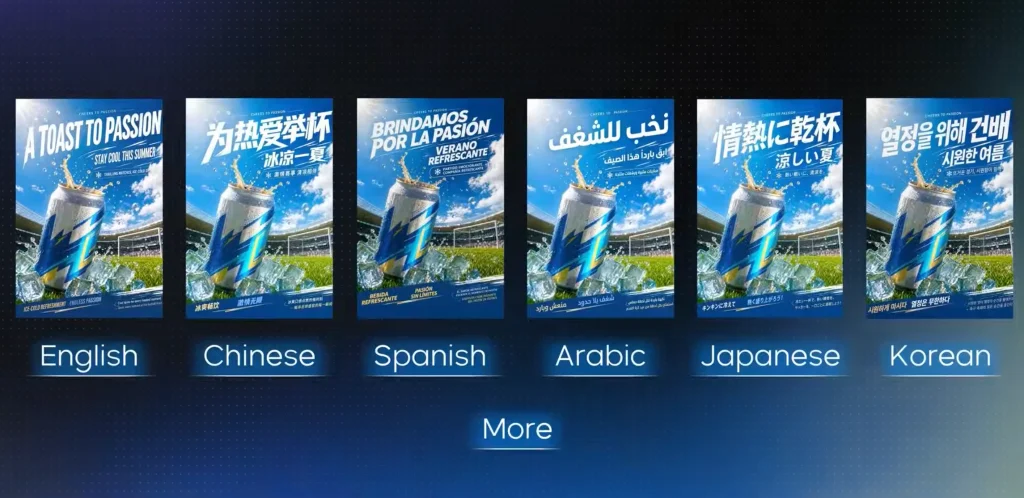
- Native multilingual generation: Now you can ask it to generate visuals in the language of your choice and have it understand layout, typography, and cultural specifics and adjust accordingly, not just by translating text.
Seedream 5.0 Pro vs GPT Image 2 vs Nano Banana Pro
Picking the right model depends on whether speed, aesthetics, or control matters most for your project.
| Feature | Seedream 5.0 Pro | GPT Image 2 | Nano Banana Pro |
| Best For | Professional editing & layers | General purpose & reasoning | Speed & aesthetic polish |
| Editing Style | Grounded (box/sketch) | Prompt-based | Minimal/one-shot |
| Layer Export | Yes (transparent PNGs) | No | No |
| Text Rendering | Excellent (14+ languages) | Very good (English focus) | Good |
| Native Resolution | 2K (upscale to 4K) | 1.5K | 1K |
| Web Search | Built-in | Optional integration | No |
| Speed | Moderate | Fast | Very fast |
If you need a quick image, Nano Banana Pro is the faster route. If you want a versatile assistant that reasons through general requests, GPT Image 2 fits well. But for a professional who needs to edit a bottle label or export a character with a transparent background, Seedream 5.0 Pro is the clear choice.
How does that editing power play out inside Edimakor?
A Complete Seedream Workflow in Edimakor
Knowing what Seedream 5.0 Pro can do is one thing. Putting it to work inside Edimakor takes just a few clicks, starting with generating your first image.
Step 1: Generate Your Base Image
Every edit starts with a base image to work from, and getting one into Edimakor takes three quick steps.
Launch Edimakor: Download and install Edimakor, then sign in to your account.
Open the AI Image Generator: Head to the AI Toolbox and pick your generation mode, either Text to Image or Reference Image, depending on how you want to build your artwork.
Select Seedream 5.0 Pro and generate: Choose Seedream 5.0 Pro from the model list, marked “superb portrait and high-density information display” in the interface. Enter your prompt, upload a reference image if your project needs one, then click Generate. Your image appears in seconds.
With a base image ready, the next step is where Seedream 5.0 Pro earns its place over a standard generator.
Step 2: Edit Only What You Need, Not the Whole Image
This is what makes Seedream 5.0 Pro different from your typical generator. Unlike regenerating your prompt all over again with a brand-new image, this allows you to edit every portion of the image that requires modification.
- Select the area you want to change: Use either the point, box, or lasso tool to select and isolate a particular spot in your image-whether it be a product tag, a background item, or an object.
- Select the type of edit: Modify the hue of the selected region, change a texture, erase an unwanted part, or add an item inside of your marked spot.
- The model retains consistency: Lighting and perspective are preserved within your selection so your modifications blend right into the rest of your photo, avoiding that pasted-on look.
- Edit over again, if necessary: As edits are based on your selection, you can perform a couple of small modifications in succession and avoid having to regenerate the entirety of the composition with each new update.
Most photo touch-ups are handled locally, but if you’re starting your project from a blank page or plan to bring it into your favorite design program, Seedream 5.0 Pro has one more feature.
Step 3: Work From a Sketch or Break the Image Into Layers
For projects that start from a rough concept rather than a finished prompt, Seedream 5.0 Pro also supports sketch-based generation:
- Draw a simple layout: A rough sketch of your intended composition is enough for the model to interpret.
- Generate the detailed version: The AI turns your sketch into a fully rendered design based on the structure you drew.
- Separate into layers: Once you have a finished image, use the layer separation feature to break it into individual, editable components, similar to opening a file in a professional design tool.
- Export and continue editing: Layers export as transparent PNGs, so you can move specific elements into other software if your workflow needs it.
This combination of grounded editing and layer export is what makes Seedream 5.0 Pro function less like a one-shot generator and more like an actual design tool inside Edimakor’s AI Image Generator.
Conclusion
Seedream x Edimakor 5.0 Pro has changed the entire process of AI image generation from an experimental creativity exercise into a more strong design production system. Equipped with advanced control and customization in image editing, language support, and economical cost to deliver consistent and controlled generation for creatives, rather than relying on the 1 out of 10 chances to generate that winning image.
See what it can do by trying Seedream 5.0 Pro in Edimakor today and turn your next design brief into a finished asset in minutes, not hours.